Skip all the way down if you want to get to the good stuff!

Image: IDG
Want to boost your PC’s storage with another SSD or HDD? Simply sticking the drive into your PC isn’t enough. First, convert the storage memory and then create one or more partitions so you can access it.
We’ll walk through the process step by step. No extra software required here, the integrated Windows disk management is more than enough. You can also convert a USB stick in the same way and make it ready for use under Windows.
Set up a shiny, new SSD or HDD in 7 easy steps.
1. Start Disk Management by pressing Windows+X and selecting the corresponding menu item. Alternatively, open the Windows command prompt with Windows+ R, type diskmgmt.msc and confirm it with the Enter key.
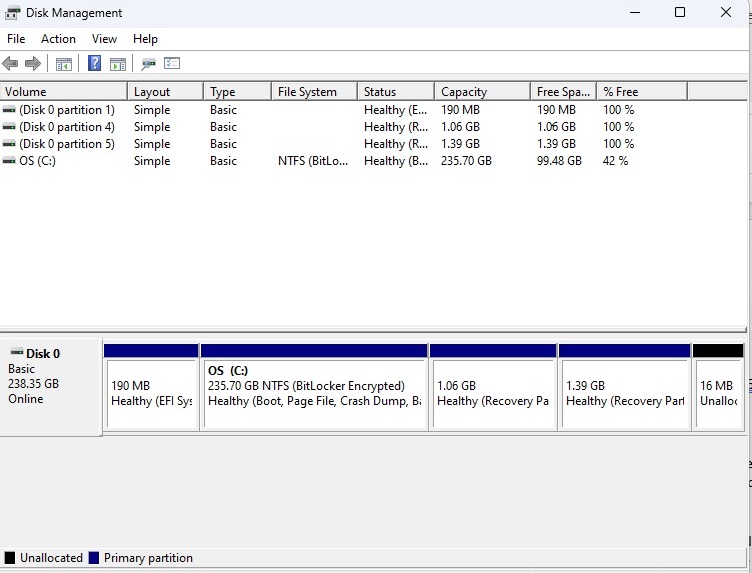
2. In that top part of the user interface, you can see the current hard drive partitions with the assigned drive letters in brackets. The most important information is the file system, the total capacity, and the free memory. The lower part of the window informs you about the physically available drive devices.
Foundry
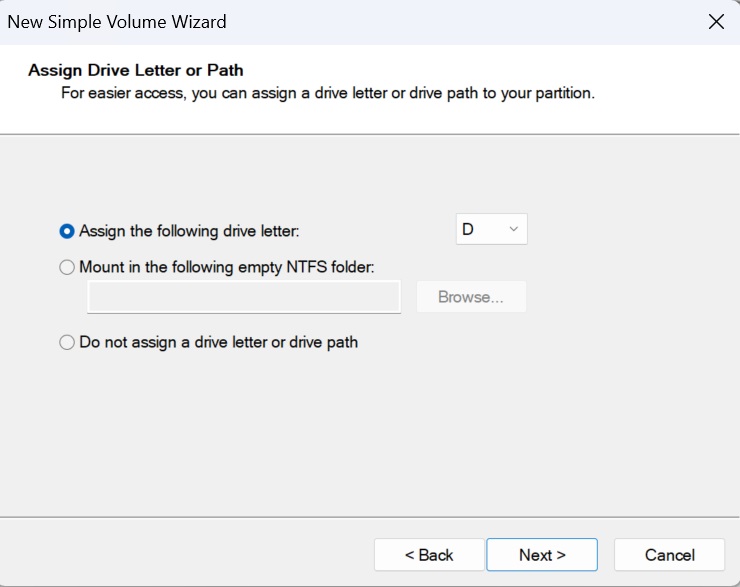
3. When you right-click on a partition or an unallocated area, a context menu pops up. Depending on this, other commands appear. Right-click on an unallocated area of a drive (marked in black) to select “New simple volume” and click on “Next.” Windows suggests the maximum possible size. Accept this if the disk isn’t to be divided into more partitions, otherwise enter the desired drive size in MB. Click on “Next,” select a drive letter, and then “NTFS” as the file system. Confirm with “OK.” Now, when you open Windows Explorer, you have access to the partition you just created.
Foundry
4. If you store private data on your computer that you don’t want other users to see, you can collect it on a separate partition and make it invisible in the next step.
Open Disk Management again. Right-click on the partition that you want to make disappear. Select “Change drive letters and paths” and click “Remove” in the following window. Click “OK” and the drive will no longer appear in Windows Explorer.

Foundry
5. In the same window, you can also assign a different drive letter to a drive if you wish.
